
Create a Custom Form | Edit a Custom Form | Remove Custom Forms
Custom Forms allow you to make changes to the default incident forms. You can set custom forms for an entire group or a specific client.
Create a Custom Form
- Select Custom Forms from the Setup menu in the administration site navigation bar
- To create a form for a specific client only, select that company in the Company to Filter Results field
- Click the New button on the right
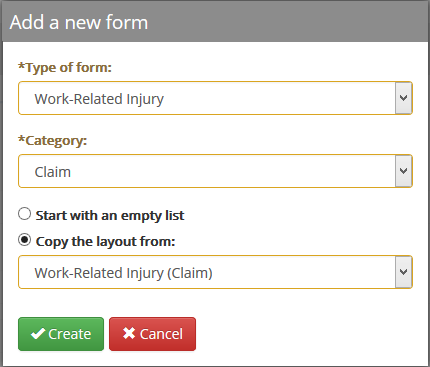
- Select the Type of Form
- State First Report of Injury forms include only the State specific section that appears in the Claim Report tab of the Incident Editor
- Auto/Fleet, Environmental, General Liability, and Property forms must also have a category: Claim, Incident, or Near Miss
- Work-Related Illness and Work-Related Injury forms have an additional category: [OSHA] Recordable
- If necessary, also select a form Category
- If desired, select an existing form to copy the layout from
- To copy the default form for modification, select the form with the same Type and Category as you selected in steps 3 and 4
- Click Create to begin editing the custom form
Edit a Custom Form
- Select Custom Forms from the Setup menu in the administration site navigation bar
- To create a form for a specific client only, select that company in the Company to Filter Results field
- Click the title of the form you would like to edit
- You are able to:
- Add, edit, or reorder tabs (tabs are listed in the panel on the left)
- Add, edit, or reorder sections in a tab
- Add, edit, or sort fields in a section
- The most common use of custom forms is to customize which fields are required to record an incident
- Fields are mapped to specific sections of incident reports; moving or renaming a field will not change where the field is mapped on a report
- You are able to:
- Click the
 icon to edit a field, or the
  icon to remove a field
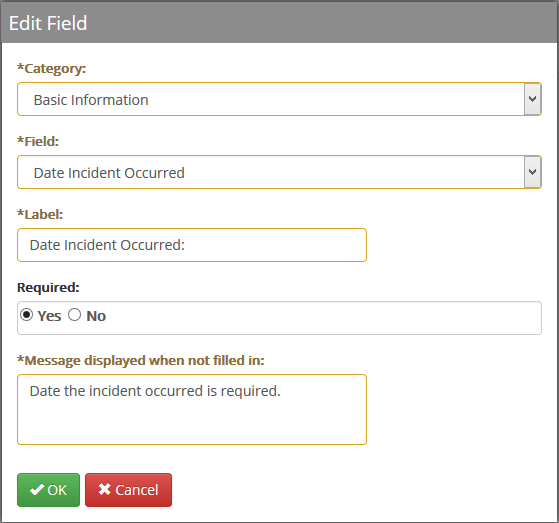
- When adding or editing a field, you must choose a category and a field. Category will correspond to the tab that the field appears on by default
- The same field cannot be included in a form more than once. If a field is already present in a form, it will not appear in the field list
- Click Next to advance to the next tab of the custom form editor
- Advance to the last tab in your custom form to Save
Remove Custom Forms
- Select Custom Forms from the Setup menu in the administration site navigation bar
- To create a form for a specific client only, select that company in the Company to Filter Results field
- Check the box(es) to the left of the form(s) that you would like to remove
- Click the Delete button on the right
- Click Yes in the confirmation dialog
Comments
0 comments
Please sign in to leave a comment.